Ivy can scan your question bank, compare each question against your organization's competency matrix, and return a list of suggested competency tags. You review every suggestion individually before anything is saved — Ivy never writes tags without your approval.
Prerequisites
Enabling the feature
- Open Organization Settings at
app.intervy.ai/org/<your-org-slug>/settings/org. For the Communications shortcut and its access requirements, see Opening the page. - Find the AI competency classification card directly on that page.
- Toggle Enable AI classification for this organization to on.
Once enabled, the classification controls appear on the Questions page for members with questions:update and org:view. This setting does not control Ivy chat: members with questions:update can request classification there whether the setting is on or off.
Running a bulk classification from the Questions page
Step 1 — Open the classify dialog
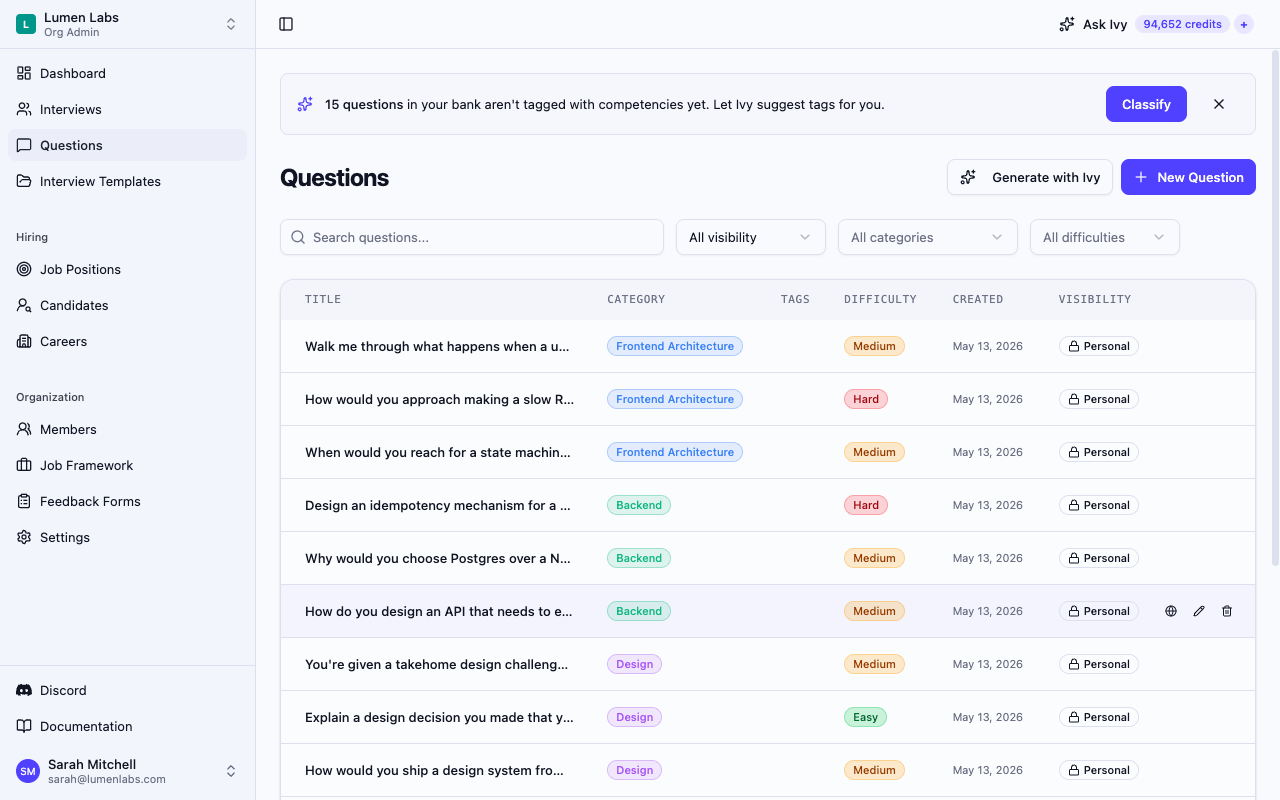
Unless you have dismissed it, a banner appears when five or more questions in your bank have no competency tags. You will see it at the top of the Questions page:
N questions in your bank aren't tagged with competencies yet. Let Ivy suggest tags for you.
Select Classify to open the dialog. Dismissing the banner removes it and the Questions-page entry to bulk classification for your organization in this browser. You can still ask Ivy to classify questions in chat.
Step 2 — Choose your scope and job roles
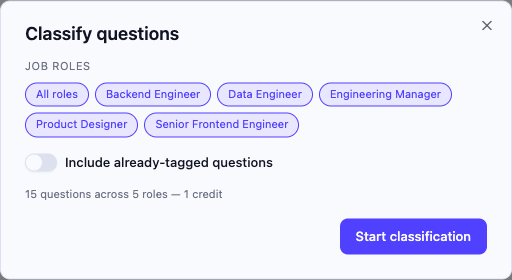
The Classify questions dialog opens in setup view.
Scope controls which questions Ivy analyzes:
| Option | What Ivy analyzes |
|---|---|
| Untagged questions | Only questions with no competency tags (default) |
| All questions | Every question in the bank, including already-tagged ones |
Toggle Include already-tagged questions to switch between these two options.
Select one or more job roles to scope the competency suggestions. Ivy maps each question against the competencies defined for the roles you pick. You must select at least one role before starting.
Step 3 — Start the classification
Select Start classification. Ivy processes your questions in the background. A progress indicator appears while it works. Selecting Cancel without charge returns you to the setup view, but a classification that has already started still finishes and is charged.
Step 4 — Review suggestions
Once Ivy finishes, the dialog switches to review mode. Each row shows:
- The question title
- The suggested competency tags; hover over a tag to see its confidence level (High, Medium, or Low)
- Any tags the question already has
You can:
- Accept or discard individual suggestions by toggling each competency chip.
- Keep all or Discard all for an entire question row at once.
- Toggle Replace existing tags if you want accepted suggestions to overwrite the question's current tags rather than being merged with them.
No changes are written until you confirm in the next step.
Step 5 — Save
Select Save N questions to apply the accepted suggestions. A confirmation toast appears, with an Undo option that reverts all tags to their previous state.
Running a classification via Ivy
You can also ask Ivy to classify questions directly from the chat panel. Ivy runs the same classification:
- If you have not specified job roles, Ivy asks which roles you want to scope to.
- With the roles selected, Ivy runs the classification and opens a draft in the workspace tab for you to review.
As with the bulk dialog, no tags are applied until you save the draft.
Credit usage
Classifications are charged according to AI usage. Before a classification starts, Intervy sets aside up to 5 credits from your balance. When it finishes you are charged what it actually used and the rest goes back to your balance; if the cost is more than your balance, you are charged what your balance covers. With no credits available, the classification does not start. If Ivy's AI provider fails, everything set aside goes back to your balance. Every classification that runs is charged, including a repeat of an earlier one and one that includes new or edited questions. Credits from a monthly plan allowance that expired in the meantime do not come back if a classification fails.
BYOK is available on Growth and Scale, or with an active access grant that includes BYOK. An Org Admin selects the organization’s provider in Settings → AI, where each member adds their own personal API key. With eligible BYOK selected and your key saved, classifications use your key, are billed by your API provider, and deduct no Intervy credits. Without your personal key, bulk classification uses Intervy’s AI and credits instead; Ivy chat requires your key before it can run. If BYOK access expires, classification uses Intervy’s AI and credits.
Selecting specific questions via Ivy
When you ask Ivy to classify a specific set of questions (for example, "classify questions 12, 15, and 20"), Ivy passes only those question IDs to the classification engine. The results appear in the workspace draft for review in the same way as a bulk run.
Permissions reference
| Action | Permission | Default roles |
|---|---|---|
| Run AI classification | questions:update | AdminStaffing |
| View organization settings and the classification flag | org:view | AdminStaffing |
| Enable / disable AI classification for the organization | org:manage | Admin |
Troubleshooting
The classify banner or button does not appear — AI competency classification may be disabled for your organization. Ask an Org Admin to enable the AI competency classification card directly on Organization Settings. You need both questions:update and org:view for the Questions-page controls to appear. If you dismissed the banner or fewer than five questions are untagged, ask Ivy in chat instead: it can classify untagged questions, already-tagged questions, or specific question IDs.
"Classification failed. Please try again." — The classification request failed. Wait a moment and try again.
Start classification is disabled — Select one or more job roles in the setup step before starting.