Every Intervy organization has a public careers page address at careers.intervy.ai/<your-org-slug>. Once you publish the page and mark open job positions public, they appear there. Candidates apply through a form — their submissions create candidate records and applications automatically.
Prerequisites
Walkthrough
Publish a job position to your careers page
- Open the job position from Job Positions, and confirm it is in the Open status.
- Select the Public listing tab and, in the Visibility card, turn on Show on careers page.
- If your careers page is published, the position appears at
careers.intervy.ai/<org-slug>/<position-slug>immediately. The card's Status line tells you when something still keeps it hidden.
Set your organization slug
Your careers page URL uses your organization's slug. To update it:
- Open the Organization Settings page (see Organization Settings).
- Edit the Slug field and select Save.
- The careers page URL changes immediately. Update any external links that reference the old slug.
The slug must be 2–48 characters: lowercase letters, numbers, and single hyphens.
Configure a custom domain
You can serve your careers page from your own domain (e.g., jobs.acme.com) instead of the default careers.intervy.ai subdomain.
- In the sidebar, open Hiring → Careers and select the Custom Domain tab.
- Enter your hostname in the Domain field and select Add domain. It must be a subdomain — bare apex domains are not supported (e.g.,
jobs.acme.comis valid;acme.comis not). - The domain shows Pending DNS and the one DNS record to add at your DNS provider: a CNAME record pointing at
careers.intervy.ai. Use the Copy buttons to copy the record's name and value. - Add the record at your DNS provider. Intervy keeps checking automatically every 10 minutes; select Re-verify to check right away. Checks can run at most once every 30 seconds: if you select Re-verify sooner, Intervy tells you how long to wait and the button shows the wait, for example Re-verify in 25s, and stays unavailable until you reload the page.
- Once your DNS is verified, the domain shows SSL Issuing while Intervy issues the certificate, then Active. With the domain Active, the tab tells you whether your careers page is live there:
- When your careers page is published and your plan includes it, the tab reads Your careers page is live at followed by your domain's address, and shows an Open button that opens the page in a new tab.
- When publishing is off, the tab reads Candidates see a “not found” page at this address until you turn on publishing. and shows a Go to Privacy & Publish button.
- On Free, the tab tells you the public careers page is available on Starter and up and that until then candidates see a “not found” page at this address, with an Upgrade to Starter button.
- While Intervy checks your publishing setting, the tab reads Checking whether your careers page is published…. If the check fails, it reads We couldn't check whether your careers page is published. and shows a Retry button.
Custom domain statuses
| Status | Meaning |
|---|---|
| Pending DNS | Waiting for the DNS record you added to be detected |
| SSL Issuing | DNS verified — Intervy is provisioning the HTTPS certificate |
| Active | Domain verified — serves your careers page while it's published and your plan includes it |
| Error | Verification failed — review the listed errors and re-verify |
| Removing | Domain is being removed and will disappear once cleanup finishes |
Candidate application flow
When a candidate submits the application form on your careers page:
- Intervy confirms the candidate passed the form's security check.
- A candidate record and an application record are created in your organization.
- The application appears in your candidates pipeline with the Applied status, and the candidate gets a confirmation email.
What candidates see: spam and duplicate protection
The apply form includes several protections. This section describes what candidates see for each one.
Human verification (CAPTCHA)
The Submit application button stays disabled until the candidate passes the automated human verification check on the form.
If the check can't load — for example, because an ad blocker or the network blocks it, or it hasn't loaded after 15 seconds — a message appears at the top of the form: "We couldn't load the security check that protects this form. Check your internet connection and turn off any ad blocker for this page, then retry."
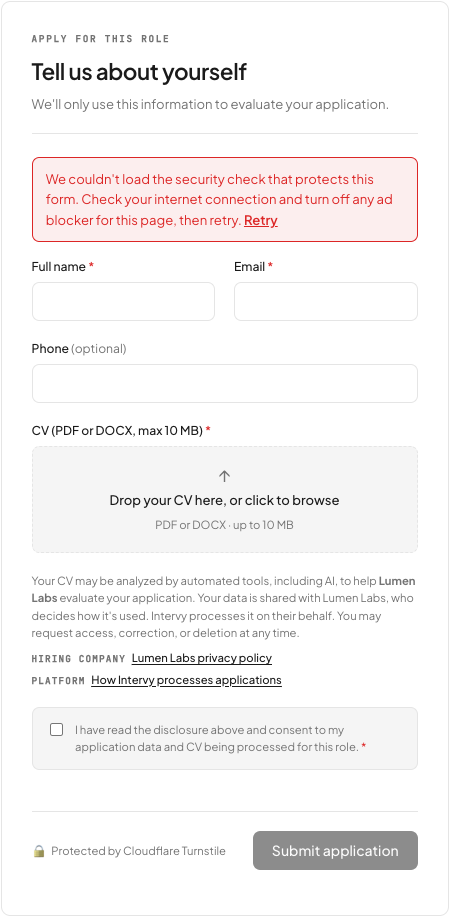
If the check times out or expires before the candidate submits, the message reads: "Your security check timed out. Retry it to submit your application."
Both messages end with a Retry button. Selecting Retry runs the check again without reloading the page. The Submit application button stays disabled until the check passes, and the message disappears once it does.
If the check fails after the candidate submits, the form displays: "We couldn't verify you're human. Please refresh and try again." Refreshing the page resets the check and lets the candidate try once more.
Rate limiting
To prevent automated submissions, the form limits how many submissions can be made in quick succession:
- Per visitor: up to 10 submissions per minute from the same IP address.
- Per careers page: up to 100 submissions per minute across all visitors to your organization's careers page.
When a submission goes over either limit, the form displays: "Too many submissions. Please wait a moment and try again." The limit resets within a minute, so waiting briefly and resubmitting resolves this.
Duplicate application
If the same email address applies to the same role again on the same calendar day (UTC), the form does not create a second record. Instead, the candidate sees a confirmation screen headed "Thanks again, [first name]" with the message: "We already have your application for [role] on file. The team will be in touch."
This keeps your pipeline clean while telling the candidate their earlier application was received.
Permissions reference
| Action | Permission | Default roles |
|---|---|---|
| Make position public | job_positions:update | AdminStaffing |
| Add / remove / verify custom domain | org:manage | Admin |
Troubleshooting
"Apex domains can't be used; pick a subdomain like careers.<your-domain>.com." — The hostname you entered is a bare apex domain. Use a subdomain with at least three labels (e.g., jobs.acme.com).
"That hostname is already in use" — Another Intervy organization has already registered this hostname. Use a different one.
Re-verify is unavailable — Checks run at most once every 30 seconds. Wait for the time shown on the button, then reload the page and select Re-verify again.
Application not appearing in pipeline — Confirm your careers page is published, the job position is in the Open status, and Show on careers page is on. Closed positions reject new applications.