Settings → General is where you personalise Intervy to match your preferences. Each section saves immediately — there is no global Save button for the page.
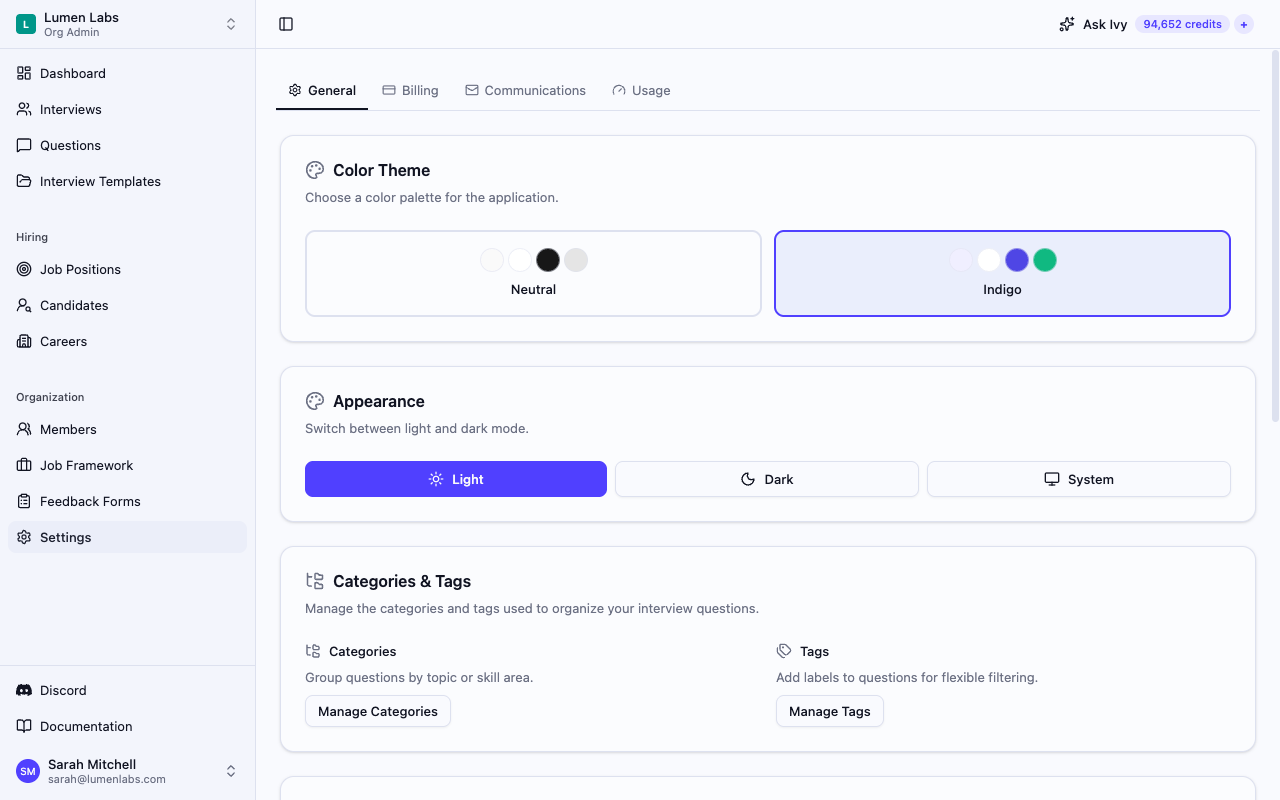
Colour theme
The Color Theme card lets you choose a colour palette for the entire application. Two palettes are available:
- Neutral — A monochromatic grey palette suited to any environment.
- Indigo — A blue-violet accent palette with a darker application background in dark mode.
Click a palette card to apply it immediately. The active palette is highlighted with a border.
Appearance
The Appearance card controls whether the interface uses light or dark mode. Three options are available:
- Light — Always uses the light variant of the selected colour theme.
- Dark — Always uses the dark variant.
- System — Follows your operating system's current appearance setting, switching automatically when the OS preference changes.
Click a button to apply the mode immediately.
Getting help
The Support card is at the bottom of the page. To reach the Intervy team, email [email protected].
Danger Zone — deleting your account
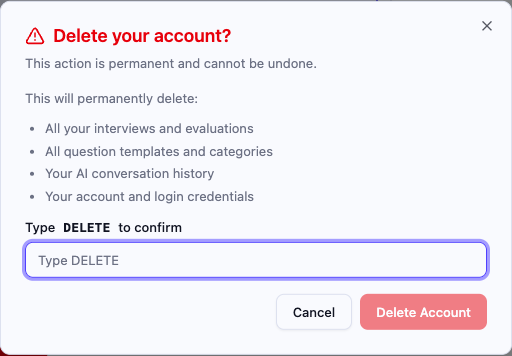
The Danger Zone card is visible at the bottom of Settings → General for all signed-in users. Select Delete Account to open the confirmation dialog.
What is deleted
Deleting your account permanently removes:
- Your account, login credentials and personal settings
- Your AI conversation history
- Your membership in every organization
- Every organization you own, including all of its data — the content other members added to it is deleted too. Questions or tags from it that another organization already uses stay with that organization.
- Your personal content that belongs to no organization. Questions or tags from it that another organization already uses stay with that organization.
If an organization you own pays for its plan online in Intervy, deleting your account cancels its subscription immediately, with no refund for the rest of the billing cycle. If a subscription can't be canceled, nothing is deleted and you stay signed in.
When Intervy can't delete your account, an error message starting with Failed to delete account tells you why. The confirmation dialog stays open, so you can select Delete Account again or Cancel.
What stays with other organizations
Content you added to organizations you don't own stays with those organizations, shown as Deleted user instead of your name. That includes interviews, questions, interview templates, feedback forms, job positions, submitted feedback, candidates and credit purchases.
Your profile is anonymized: your name becomes Deleted user and your email address is replaced with a placeholder. This frees your email address, so you can sign up with it again later — that creates a new, separate account.
Your email address stays in these records after deletion:
- The record of your free signup credits, so a new account with the same email address does not receive the free credits again.
- Invitations you received from organizations you don't own, including the ones you accepted.
- The audit logs of organizations you don't own. They keep your name, email address, IP address and browser details on the actions you took there, and your email address on the actions others took on you, such as inviting you, changing your role or removing you. These entries can still be removed once they pass the audit log retention period of the organization's plan.
The Privacy Policy explains the legal basis for keeping the audit log entries and invitations.
Confirming deletion
- In the Danger Zone card, select Delete Account.
- In the dialog that opens, type
DELETE(in capitals) into the confirmation field. - Select Delete Account to confirm. The button remains disabled until the exact word is entered.
After deletion
Once your account is deleted, Intervy takes you to the sign-in page. You are signed out everywhere: any other browser or device that was signed in to the deleted account is signed out too.