Open Settings → Branding to manage your organization's logo and the display name shown on outgoing emails.
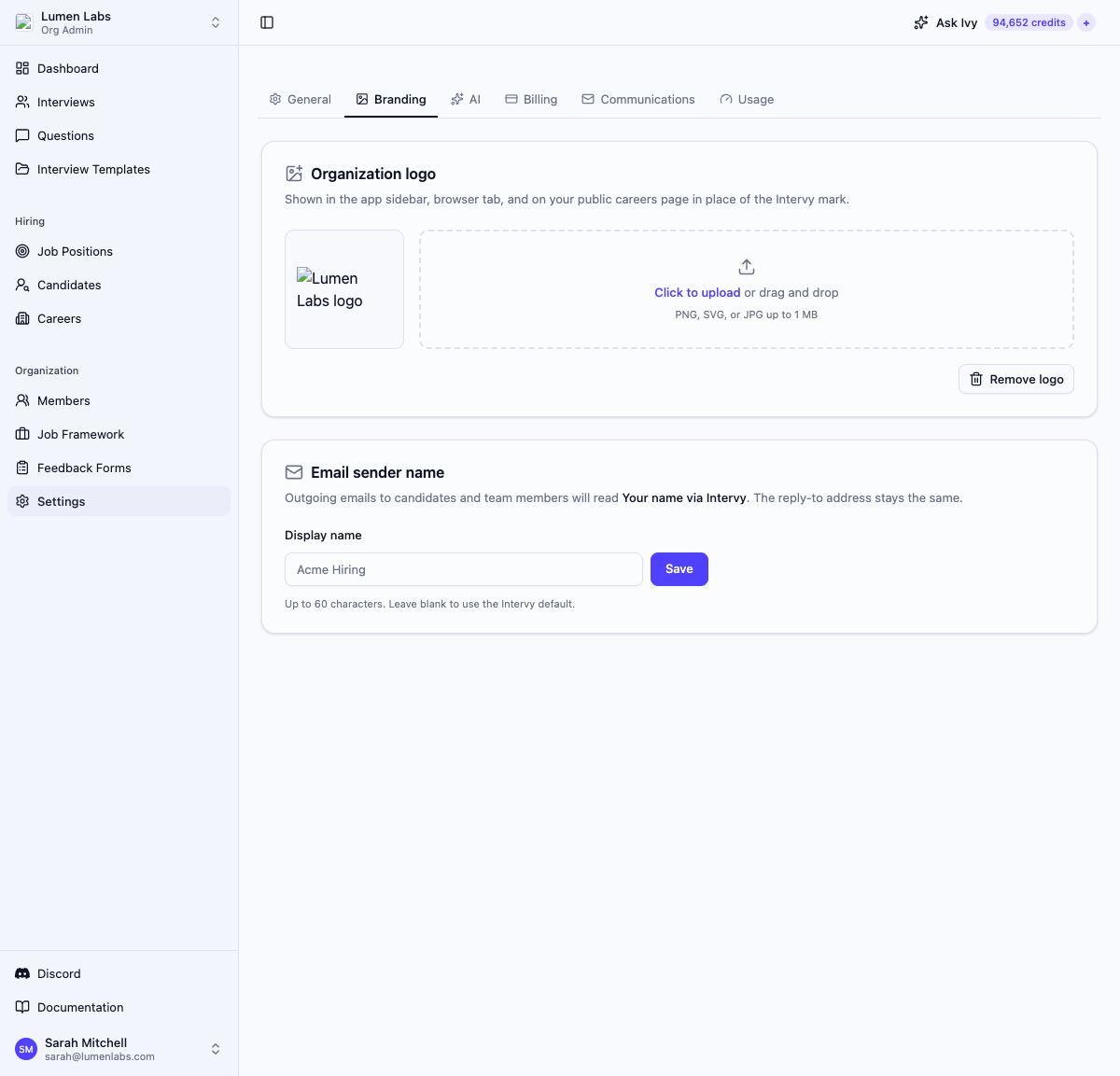
Organization logo
Your logo appears in the app sidebar, the browser tab favicon, and on your public careers page in place of the Intervy mark.
Uploading a logo
- Open Settings → Branding.
- In the Organization logo section, click Click to upload or drag and drop a file into the dashed area.
- Select a PNG, SVG, or JPG file up to 1 MB.
The preview on the left updates immediately after the upload succeeds.
Removing the logo
Click Remove logo below the upload area. The logo is removed and all surfaces revert to the Intervy default mark.
Email sender name
By default, outgoing emails to candidates and team members show Intervy as the sender display name. On the Scale plan you can replace this with your organization's name or a team name — recipients will see Your name via Intervy in their inbox. The reply-to address does not change.
To set a sender name:
- Open Settings → Branding.
- In the Email sender name section, type a name in the Display name field. The preview in the card description updates as you type.
- Click Save.
The name can be up to 60 characters. Leave the field blank and click Save to revert to the Intervy default.
Permissions reference
| Action | Permission | Default roles |
|---|---|---|
| View branding settings | org:view | AdminStaffing |
| Upload or remove logo / save email sender name | org:manage | Admin |
Troubleshooting
"Could not upload logo. Try PNG, SVG, or JPG under 1 MB." — The file is either an unsupported format or exceeds the 1 MB size limit. Convert the image to PNG, SVG, or JPG and ensure it is under 1 MB before uploading again.
"Could not save sender name" — The display name could not be saved. Ensure the name is 60 characters or fewer and try again.
Controls are greyed out or show an upgrade prompt — The branding features require the Scale plan. Contact your account team to upgrade.