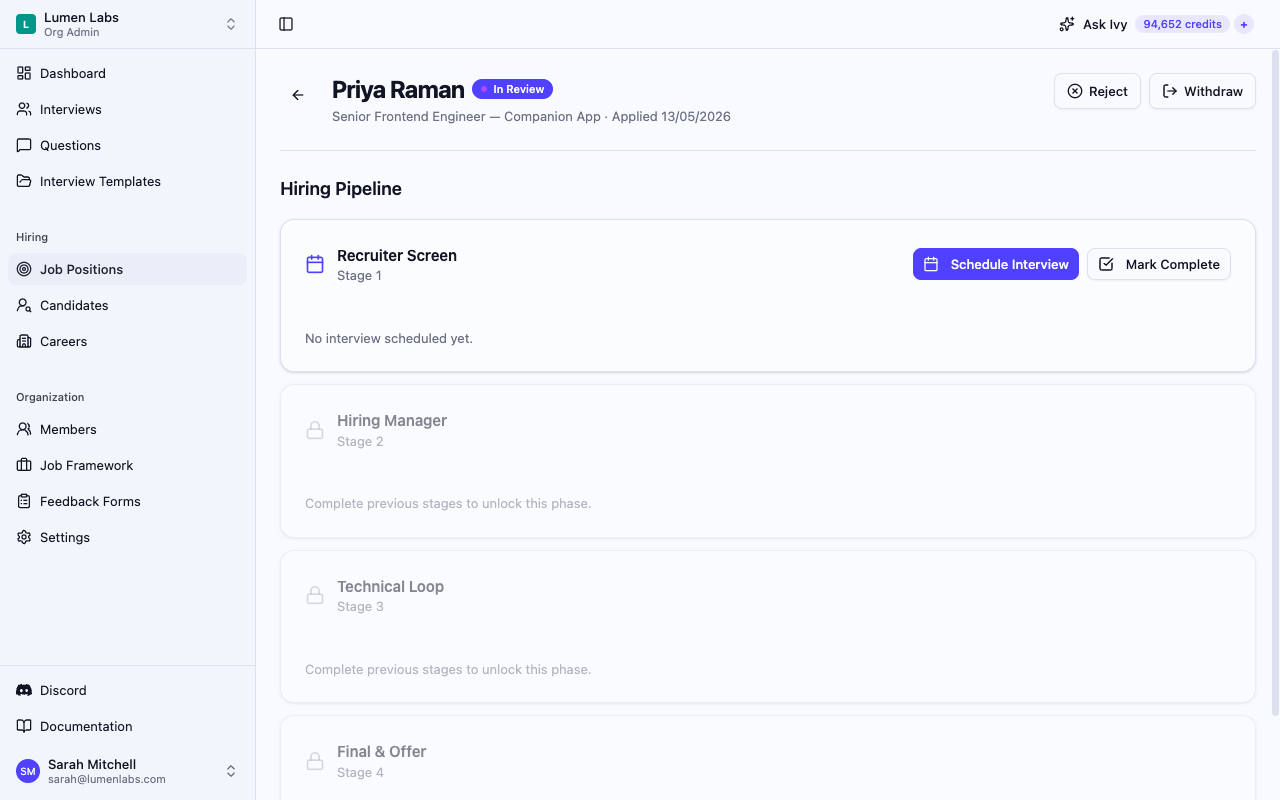
The application detail page is the daily-driver view for moving a candidate through a job position's hiring pipeline. It shows the candidate's current status, all pipeline stages with their phases, and every action available at each step.
Prerequisites
If you do not have permission to view an application, the page shows You don't have access to this page. A missing application still shows Application not found.
What the page shows
The header displays the candidate's name, the current application status badge, the position title, and the date the application was submitted. The status badge uses a colour-coded dot:
| Status | Indicator |
|---|---|
| Applied | Blue |
| In Review | Purple |
| Offer | Emerald |
| Hired | Violet |
| Rejected | Rose |
| Withdrawn | Grey |
When an application reaches the Offer stage — or an offer has already been drafted — an Offer card appears between the header and the pipeline. Before an offer exists, the card reads "No offer yet." and, if you hold offers:create, shows Create offer. Opening the offer builder also requires offers:update. Once an offer exists, the card shows its current status (such as Draft, Pending approval, Approved, Sent, Accepted, Declined, or Expired), along with the salary, proposed start date, and expiry cutoff when those details have been filled in. A date-only expiry is 00:00 UTC at the start of that date; a timestamp expiry shows its actual cutoff in UTC. Previously stored invalid values remain visible unchanged. Depending on your permissions, the card also surfaces quick actions: Edit draft and Submit for approval for a draft offer, Send once the offer has been approved, and Mark accepted or Mark declined once it has been sent. For an Approved offer without a candidate email, Send is disabled and the card explains No email on file; the offer stays Approved. With candidates:update, save an email on the candidate record before returning to send. Offer letters are available on the Growth and Scale plans.
If the current offer review was rejected, the original submitter can select View rejection reason (the message icon) beside Draft on the Offer card. The panel shows the reviewer’s feedback, including line breaks, and scrolls for long reasons. The icon is absent when no reason is available. Feedback from an older review is not shown after a newer review takes its place, and approval feedback appears only while the offer is Draft.
Below the header a Hiring Pipeline section lists every phase defined for the position, grouped by stage.
Stages and parallel phases
Each phase card shows the phase name and its stage number. Phases are grouped into stages that must complete sequentially — all phases in one stage must finish before the next stage becomes available.
When a stage contains more than one phase, they are grouped under a Parallel — Stage N label, appearing side-by-side when there is enough room. These parallel phases can run simultaneously with different interviewers.
Phase states
Each phase card shows an icon reflecting its current state:
| State | Icon | Meaning |
|---|---|---|
| Locked | Lock | A previous stage is not yet complete |
| Available | Calendar | Ready to schedule — no interview booked yet |
| Scheduled | Clock | An interview is booked and has not started yet |
| In Progress | Play | The interviewer has started the interview, or it was booked before Scheduled existed |
| Completed | Green checkmark | The interview finished (or the phase was marked complete manually) |
| Closed | Lock | No interview yet, and the application is Hired, Rejected, or Withdrawn |
Locked phases show a faded card and the message "Complete previous stages to unlock this phase." Available phases show the Schedule Interview and Mark Complete actions.
Once an application is Hired, Rejected, or Withdrawn, it is closed: every phase that has no interview yet shows a faded card with the message "This application is closed." and no Schedule Interview or Mark Complete action. Phases that already have an interview keep their state.
Scheduling an interview for a phase
On any Available phase card, select Schedule Interview:
- If the position was set up with a fixed interview template for this phase, the Schedule Interview — [phase name] dialog opens straight away. The template name and a Locked badge appear in the dialog and cannot be changed.
- Otherwise the Start Phase: [phase name] page opens first, so you can choose the interview template. Select Use this template on a template, or Start empty. Start empty uses the phase's default template when the phase has one, and no template otherwise. You then return to the application with the scheduling dialog open. When its template details are available, the dialog shows the name of the template that will be used.
When the selected template needs a library lookup, the dialog shows Loading interview templates… while the first read is pending. If that read fails, including a refresh of previously loaded details, it shows Interview templates are unavailable. Select Retry loading templates, or contact your organization admin to check your access. Retrying keeps your scheduling fields intact. If the library loads successfully but does not contain the selected template, the dialog says Selected template details are not available in the library. Neither message clears the selection or adds a restriction to Schedule. A locked phase's template name remains available independently of the library read.
Fill in the scheduling dialog:
- Interviewer — pick from members who have permission to conduct interviews.
- Date & Time — choose the scheduled date and time.
- Duration — 15, 30, 45, 60, 90 or 120 minutes. A new interview starts with 60 minutes selected.
- Meeting link or Or in-person location — both optional. You can leave both blank if the meeting details are not ready yet.
- Notes (optional) — preparation notes for the interviewer. They appear on the phase card on this page.
- Select Schedule to confirm. The button stays disabled until you pick an interviewer and a date and time.
The phase card updates to the Scheduled state and shows the interviewer, the date and time, your notes, and a Scheduled badge. The badge changes to In Progress once the interviewer starts the interview. When the interview has a template, its questions are already attached. If the application was still in Applied, it moves to In Review.
For full details on conducting the interview, see the Interviews documentation.
Rescheduling or cancelling
On a Scheduled or In Progress phase, the card shows Reschedule and Cancel buttons.
- Reschedule opens a dialog pre-filled with the current meeting link and location. Saving moves the same interview to the new date and time, keeping its template, interviewer and duration, and requests fresh confirmations. Nothing is cancelled.
- Cancel removes the booking once you confirm with Yes, cancel.
On a closed application — Hired, Rejected, or Withdrawn — a booked phase shows only Cancel; Reschedule is not offered.
If cancelling leaves the application in In Review with no booked, completed, or manually completed phase remaining, the application returns to Applied.
Marking a phase complete without an interview
If a phase does not need an interview — for example, the candidate already passed an equivalent assessment — select Mark Complete on an Available phase. A dialog titled Mark complete — [phase name] opens: "Record this phase as done without a scheduled interview. The next stage unlocks once every phase in this stage is complete." Add a note in Notes (optional) if you want to record why, then select Mark Complete.
If the application was still in Applied, it moves to In Review. Phases completed this way show a Completed manually badge, your note if you added one, who marked the phase, and the date.
To reverse a manual completion, select Undo Completion on the phase and confirm with Undo (or select Keep to leave it). The phase returns to Available when earlier stages remain complete; on a closed application, it shows Closed. If the stage becomes incomplete, later Scheduled or In Progress interviews are cancelled too, as the confirmation warns. The Activity Timeline records the undo as Interview cancelled with the note Manual completion undone.
Phases with a completed interview show a View Review button that opens the interview's review page. It appears only if you hold both interviews:assign and interviews:view_all.
Viewing phase feedback
On a completed interview phase, select View Feedback to read its feedback fields and responses, including who submitted the feedback and who edited it when a different teammate made the last edit. Select Hide Feedback to collapse it.
The control appears when you have interviews:view_all, or when you have interviews:conduct and created the interview or are assigned to it. Creating an interview keeps that read access after it is reassigned. Viewing the application itself still requires candidates:view.
If a feedback read is refused because your access changed after the application opened, the panel shows You don't have access to this feedback. You can select Retry, or collapse the panel and reopen it. Other loading failures also offer Retry. If the interview has been removed, the panel shows Feedback not found with Close feedback. The rest of the application remains available. When no feedback has been saved, the panel shows No feedback available.
Viewing the scorecard
Once at least one phase interview is completed, View Scorecard appears in the header if you hold scorecards:view. When your organization has access to scorecards, select it to open the scorecard for the full application. Otherwise, the button stays disabled with an Upgrade link beside it. Without that access, opening the scorecard address directly shows the Scorecards upgrade page; a plan refusal while opening the page shows the same upgrade treatment.
Advancing the application status
Most status changes follow from what you do in the pipeline:
| What you do | Status change |
|---|---|
| Schedule the first interview, or mark the first phase complete | Applied → In Review |
| Select Extend Offer once every phase is complete | In Review → Offer |
| The candidate accepts the offer | Offer → Hired |
| Cancel the last booked interview or undo the last manual completion, when no phase has a completed interview | In Review → Applied |
Each change is recorded in the Activity card as Application status changed.
The status buttons in the header require candidates:update.
Applied → In Review
A new application starts in Applied. It moves to In Review as soon as you schedule an interview or mark a phase complete. The application detail page has no button for this step; you can also change it from the candidate record, as described below.
In Review → Offer
The Extend Offer button appears in the header only when the application has pipeline phases, all of them are complete — through a completed interview or with Mark Complete — and the application is in In Review. Select it to move the application to the Offer status. Once the status changes, the Offer card appears on the page so you can start the offer workflow from the application’s Offer card. For the full offer builder, approval, and candidate-facing send workflow, see Sending an Offer.
Offer → Hired
When the candidate accepts the offer — through the link in their offer email, or when you select Mark accepted on the application's Offer card or the Offer letter page (this needs offers:send) — the application moves to Hired on its own. This also applies to an offer that was sent while the application was still in In Review. Moving an application to Hired automatically sets the parent candidate's status to Hired.
Changing the status from the candidate record
On the candidate record, the arrow next to each application's status badge lists the statuses that application can move to next — for example In Review and Withdrawn for an Applied application. To reject an application, use Reject on the application detail page.
Withdrawing an application
Select Withdraw to record that the candidate stepped out of the process. Withdrawn is a terminal state — the button disappears once an application is withdrawn, hired, or rejected.
Rejecting an application
Select Reject in the header to open the rejection dialog. You must choose a rejection reason, and you can optionally add a private team note and decide whether to send the candidate a rejection email when that feature is available and an email address is on file.
For the full rejection flow, see Rejecting a Candidate Application.
Activity timeline
Below the pipeline, the Activity card records the key changes to this application — status moves, scheduled and cancelled interviews, completions, manual phase completions, and rejections. Status changes read as the two statuses, for example Applied → In Review. Use the filter to narrow the list to a single event type. See Activity Timeline for the full list of recorded events.
Asking Ivy about the application
Select Ask Ivy while an application is open. Ivy receives the current application, candidate and position, so you can ask it to “reject this candidate because they are not a fit.” Review the proposal before approving it; asking Ivy does not change the application by itself.
Opening another application updates which candidate “this candidate” refers to. Leaving the application page clears that page reference while keeping the conversation. To ask about someone else, name that candidate explicitly. A page that is still loading, unavailable or inaccessible does not supply an application target.
Permissions reference
| Action | Permission | Default roles |
|---|---|---|
| View application | candidates:view | AdminStaffing |
| Use the template chooser for an unlocked phase | job_positions:view | AdminStaffing |
| Change application status (Extend Offer, Reject, Withdraw) | candidates:update | AdminStaffing |
| Schedule, reschedule, cancel, or mark/undo phase completion | interviews:assign | AdminStaffing |
| View phase feedback, or View Review with interviews:assign | interviews:view_all | AdminStaffing |
| Read feedback or conduct an interview you created or were assigned | interviews:conduct | AdminInterviewer |
| Edit any interview | interviews:edit_all | AdminStaffing |
| Load the interviewer picker for scheduling | members:view | AdminStaffing |
| Load template information in the scheduling dialog | templates:view | AdminStaffingInterviewer |
| View scorecard | scorecards:view | AdminStaffing |
| Create an offer from the Offer card | offers:create | AdminStaffing |
| Save changes to a draft offer | offers:update | AdminStaffing |
| Send an offer or mark it accepted | offers:send | AdminStaffing |