The Audit page under Settings gives Org Admins a full record of every AI call the organization has made. It shows summary cards for the current calendar month, breakdowns by activity type, model, and team member, and a paginated log of every individual call — all filterable and exportable to CSV.
Overview
Navigate to Settings → Audit to open the page. Three summary cards at the top always reflect the current calendar month, regardless of any filter you apply below. The breakdowns and the log table respond to the active filters.
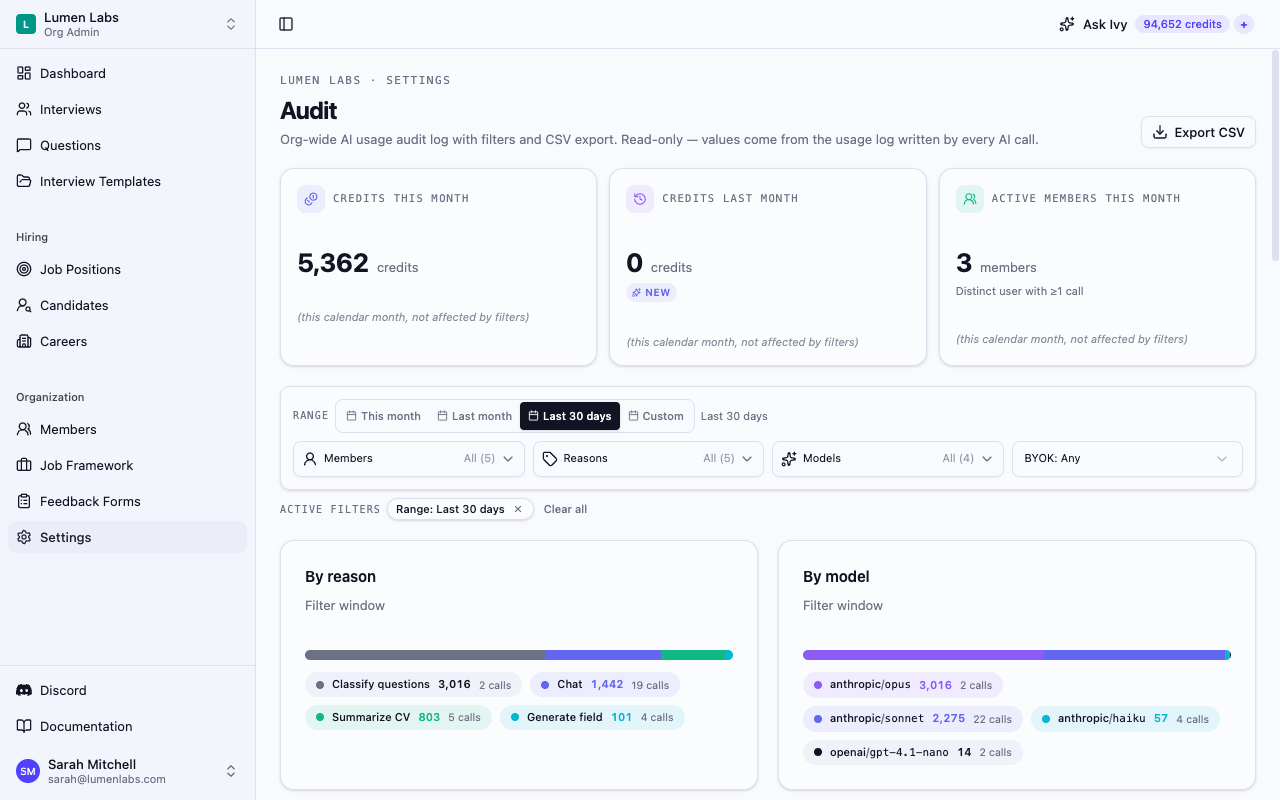
Summary cards
Three cards appear at the top of the page:
- Credits this month — total credits consumed in the current calendar month.
- Credits last month — total credits consumed in the previous calendar month, plus a month-over-month delta pill showing the percentage change (green arrow up, red arrow down, or flat/new for edge cases).
- Active members this month — the count of distinct team members who made at least one AI call in the current calendar month.
Each card carries a note reading "this calendar month, not affected by filters" to make clear that changing the date range in the filter bar does not alter these headline numbers.
Filter bar
Use the filter bar to narrow the breakdowns and the log table. Filters do not affect the three summary cards.
Date range
Four preset buttons are available: This month, Last month, Last 30 days, and Custom. Selecting Custom reveals Since and Until date pickers. Until both dates are filled in, the page shows a hint to pick a start and end date rather than loading data.
Additional filters
Three further dropdowns let you narrow results:
- Members — restrict the view to one or more specific team members.
- Reasons — restrict to one or more activity types: Chat, Generate field, Summarize CV, Classify questions.
- Models — restrict to one or more AI models that appear in the filtered data.
A BYOK selector is also available with three options: Any, BYOK only, and Non-BYOK only.
Active filters appear as chips below the filter bar. Click × on a chip to remove it individually, or click Clear all to reset every filter at once.
Breakdowns
Below the filter bar, three side-by-side charts summarize credit consumption for the active filter window:
By reason
A horizontal bar and legend show how credits split across activity types — Chat, Generate field, and Summarize CV are the primary categories.
By model
The same visual treatment shows which AI models consumed the most credits within the filter window.
By member
A table lists each team member alongside their credit total and call count for the filter window. The top five members are shown by default. Click Show all (N) to reveal the rest; click Show top 5 to collapse again. When more than seven members are present, the bar chart folds the lower-ranked members into a single Other segment.
If a member has since been removed from the organization their row shows Unknown user in place of a name.
Audit log table
The Audit log section below the breakdowns shows every individual AI call that matches the active filters, newest first. Each row includes:
| Column | What it shows |
|---|---|
| When | Timestamp of the call |
| User | Name and email of the team member who triggered the call |
| Reason | Activity type (Chat, Generate field, Summarize CV, etc.) |
| Model | AI provider and model used |
| Tokens | Input and output token counts |
| Credits | Credits charged, or the provider cost for BYOK calls |
BYOK calls show a BYOK badge in the Credits column and display the provider cost instead of a credit count, since no credits are deducted in BYOK mode.
The table loads 50 rows at a time. Click Load more to fetch the next page. When all rows for the filter window are loaded, a note reading "End of results for this filter" appears in place of the button.
CSV export
Click Export CSV in the top-right corner of the page to download all rows that match the current filters as a CSV file. The file is named intervy-usage_<org>_<from>_<to>.csv and includes the full set of columns shown in the log table.
The Export CSV button is disabled when no rows match the current filters. Hovering the disabled button shows the message "No rows match the current filters — widen the date range or clear a filter to enable export."
Audit vs Usage
Intervy has two related pages under Settings:
| Audit | Usage | |
|---|---|---|
| Scope | Full record of every individual call | Aggregated consumption summary |
| Who can access | Org Admins | Org Admins |
| Detail level | One row per API call | Totals and charts only |
| Export | CSV export of individual rows | — |
Use Audit when you need to trace a specific call, investigate unusual spend by a team member, or export a full record for billing review. Use Usage for a quick overview of how credits are being consumed over time.
Permissions reference
| Action | Permission | Default roles |
|---|---|---|
| View AI usage audit log | billing:view | Admin |