Ivy is your AI copilot inside Intervy. Open the Ivy panel from screens in your organization when Ivy is enabled to draft questions, build templates, review candidate profiles, look up candidates and applications, prepare candidate, application and offer drafts, and get answers about how Intervy works — all without leaving your current context.
What Ivy can do
Ivy works in steps: she reads information from your organization, looks things up or prepares drafts, and can take several of these steps before she answers you.
If Ivy runs out of steps, she tells you the request is unfinished. Any drafts, proposals or lookup cards already returned remain available for you to review.
Ivy never changes your candidates, applications or offers on her own. She prepares a draft or proposes a change, and nothing happens until you select Save or Approve on the card she shows. The line under the message box says so: Ivy drafts and proposes. Nothing changes until you save or approve.
On narrow screens, the Ivy panel opens at the full width of the screen.
What Ivy can work with
Which of these Ivy can use depends on your role and your plan — see What Ivy can use.
Questions, templates and interviews
- Search your question library and open a question; draft new questions, and edit or remove those drafts.
- Search and open interview templates; draft a template, edit it, and add questions to it.
- Search and open interviews, including scheduled ones; draft questions for an interview that is Scheduled or In Progress, and edit or remove them.
- Suggest competency tags for your questions — see Classifying Questions with Ivy.
Which interviews Ivy can open depends on your interview permissions. With interviews:view_all she can open any interview in your organization; with interviews:conduct alone, only interviews you created or scheduled, or that are assigned to you. Searches include Scheduled, In Progress and Completed interviews within that access. To draft questions for an interview she needs interviews:edit_all, which covers any interview, or interviews:conduct, which covers your own. Ivy treats an interview outside your access as not found: it doesn't appear in her searches, and she can't open it or draft questions for it.
Candidates, applications and job positions
- Find candidates by name, notes or profile, or by status, position or source, and open a candidate with their applications.
- List applications by position, candidate, status or current phase, and open an application with its phases and interviews.
- Find job positions by title or status, open a position, and list its interview phases in pipeline order.
- Draft a new candidate, an application of a candidate to a position, or an offer — see Draft cards.
- Propose changing an application's status, including rejecting it — see Status change proposals.
Candidate and application lookups omit the candidate's stored contact email, phone number and CV file. Candidate notes and profile information can still be included. For an application, Ivy also learns whether an email address is on file.
Your organization and the docs
- List the organizations you belong to.
- List the members of the organization you're working in, with their names, emails and roles. Ivy can't list the members of another organization from the chat.
- Search the Intervy documentation.
Cards in the chat
When Ivy looks up a candidate or application, or prepares a candidate, application or offer draft or status change proposal, the result appears as a card under her message. Updates to an earlier draft point you back to its original card.
Lookup cards
| Card | What it shows |
|---|---|
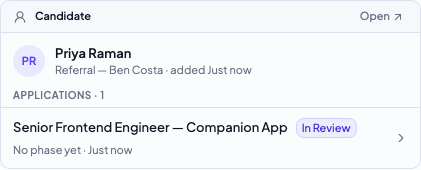
| Candidate | The candidate's name, source and when they were added, then each of their applications with the position, status, current phase and when they applied. Select Open to go to the candidate. |
| Candidates | Each matching candidate with their source, number of applications and when they were added. The title shows the number of matches. |
| Application | The candidate, position and status, whether an email is on file, the reason for a rejected application, and each phase of the position: the current phase is marked Current, and other phases with an interview show its status, such as Scheduled or Completed. |
| Applications | Each application with the candidate, current phase, when they applied and status. When every result is for the same position, the card is titled with the position instead. |
Select any row in a list to open that candidate or application. A long list shows the first 50 results and a Showing X of Y note under them.
Draft cards
A draft card holds something Ivy prepared for you. It carries a Draft badge until you save it, when the badge changes to Saved. While you edit a draft on the card, the badge reads Editing.
| Card | What you can do |
|---|---|
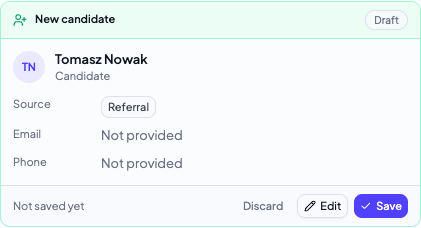
| New candidate | Review the name, source, email, phone and notes. Select Edit to change them on the card, then Done. Select Save to add the candidate — the card then reads Added to Candidates and offers Open candidate. |
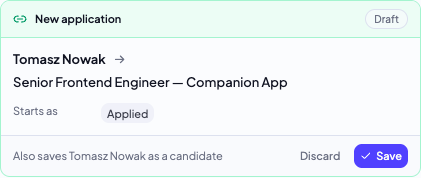
| New application | Shows the candidate, the position and that the application starts as Applied. Select Save to create it — the card then reads Added to followed by the position and offers Open application. |
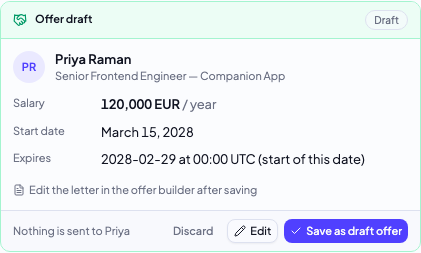
| Offer draft | Review the salary, start date and expiry date, and the letter when Ivy wrote one. Select Edit to change the salary, currency, pay period and dates. Select Save as draft offer to create the offer as a Draft — the card then reads Saved as a draft offer · not sent and offers Open offer. |
Select Discard to drop a draft. The card shrinks to a single line with an Undo button that brings it back.
Applying a new candidate
When you ask Ivy to add a new candidate and apply them to a position in one go, the application card is linked to the candidate draft and reads Also saves followed by the candidate's name as a candidate. Saving the application saves the candidate first. If you discard the candidate draft, the application can't be saved until you undo the discard.
Ivy drafts an application only for an open position, and not for a candidate who already applied to that position.
Drafting an offer
Ivy drafts an offer only for an application in In Review or Offer that has no offer yet, and only when your plan includes offers — see Sending an Offer. Nothing is sent to the candidate when you save the draft.
A date-only expiry takes effect at 00:00 UTC at the start of that date. A timestamp with an explicit timezone keeps its actual instant, which the card shows in UTC. Ivy accepts real calendar dates (YYYY-MM-DD) or valid ISO timestamps with a timezone. Invalid values are rejected, and the on-card editor shows an error until the expiry is corrected. Previously stored invalid values remain visible for correction.
You can't edit the offer letter on the card — the card reads Edit the letter in the offer builder after saving. After you save, members with offers:update can select Open offer to edit the letter on the Offer letter page.
Status change proposals
When you ask Ivy to change an application's status, she shows a proposal card with a Needs approval badge instead of changing it. Select Approve to apply the change or Dismiss to leave the application as it is.
| Card | Shows | After you approve |
|---|---|---|
| Change status | The candidate, the position, and the current and new status | Status changed to followed by the new status |
| Reject application | The candidate, the position, the rejection reason, your private note if you gave one | Rejected · email sent to followed by the candidate's first name, or Rejected · no email sent |
If you dismiss the proposal, the card reads Nothing changed · application stays followed by the current status.
Ivy can only propose a status the application can move to next — for example, from Applied to In Review, Rejected or Withdrawn. A rejection requires a reason. If you have not supplied one, Ivy is instructed to ask you before preparing the proposal.
The rejection email
A rejection proposal has a Send rejection email switch. It starts on when the candidate has an email address on file and rejection emails are available to your organization, unless you told Ivy not to email the candidate. You can change it before you approve:
- On — when available, the email preview uses your rejection email template. A warning reads Approving emails followed by the candidate's first name and right away. The rejection email can’t be unsent. The approve button reads Approve & send email.
- Off — the card reads No email will be sent. Only the application status changes. The approve button reads Approve.
If rejection emails are unavailable, the switch is off and disabled, with an Upgrade hint. Approval records the rejection without sending an email. When a recipient is on file, approval waits while feature access is loading. The upgrade hint stays hidden during loading.
If Ivy found no email address when preparing the proposal, the switch is off and cannot be turned on.
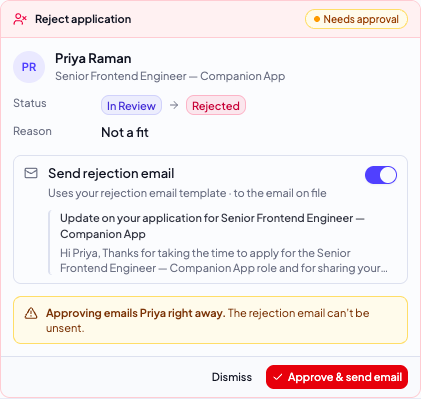
Approving a rejection saves the reason and private note and applies the email choice shown on the card — see Rejecting a Candidate Application.
If Ivy found no email when preparing the card, approval sends no email and the application shows Email skipped, even if an address was added later. The Reject dialog instead shows No email on file when the candidate still has no address.
What Ivy can't do
- Move an application to another interview phase. Schedule the phase's interview or mark the phase complete on the application page instead — see Application Detail Page.
- Create an offer by changing the status. Moving an application to Offer doesn't create an offer — ask Ivy to draft one instead.
What Ivy can use
Ivy only uses the tools your role and plan allow. A tool that needs a permission you don't have — or a plan feature your organization doesn't have, such as offers — is hidden from her. For example, without candidates:view she can't look up candidates or applications, without members:view she can't list your organization's members, and without interviews:view_all or interviews:conduct she can't search or open interviews. The permissions reference below lists what each permission unlocks.
BYOK setup
Bring Your Own Key (BYOK) lets your organization use each member's own Anthropic or OpenAI API key for Ivy's AI model requests instead of Intervy credits. BYOK is available on Growth plans and above.
Step 1 — Enable BYOK
- Open Settings → AI. Changing the provider requires permission to manage organization settings, which Org Admins have by default.
- Under Ivy AI provider, choose Anthropic or OpenAI.
- Confirm the switch in the dialog that appears.
- Click Save changes. New Ivy requests from everyone in the organization use BYOK after the change is saved.
Step 2 — Each member adds their personal key
Once BYOK is active, every member must add their own API key:
- Open Settings → AI. Every organization member, including an Interviewer, can manage their own key without organization-view permission.
- Under Ivy AI provider, find the field for your personal key — Your personal Anthropic API key or Your personal OpenAI API key, depending on the provider your organization chose.
- Paste your key and move focus away from the field to save it, then select Test to check the connection. Enter a new key to replace it, or select Remove key to delete it. These changes affect only your own key, and the remove action remains available after testing.
If the provider is unknown or unavailable, turn on your personal Enable Ivy switch and select Refresh AI status. Loading or a failed read never means Intervy Credits. Members who can read organization settings can also retry that read with Retry provider settings; Ivy's known provider still permits personal-key management.
Permissions reference
Chat access requires organization membership. When Ivy is enabled, members can open the panel; sending messages also requires available Intervy credits or a configured personal key in BYOK mode. What Ivy can do for you depends on the permissions below:
| Action | Permission | Default roles |
|---|---|---|
| Read organization provider settings | org:view | AdminStaffing |
| Configure the organization's Ivy provider | org:manage | Admin |
| Look up candidates and applications with Ivy | candidates:view | AdminStaffing |
| Draft a new candidate with Ivy | candidates:create | AdminStaffing |
| Draft an application or approve a status change proposed by Ivy | candidates:update | AdminStaffing |
| Look up job positions and their phases with Ivy | job_positions:view | AdminStaffing |
| Draft an offer with Ivy (plan must include offers) | offers:create | AdminStaffing |
| Edit a saved offer in the offer builder | offers:update | AdminStaffing |
| List organization members with Ivy | members:view | AdminStaffing |
| Classify questions with Ivy | questions:update | AdminStaffing |
| Look up any interview in the organization with Ivy | interviews:view_all | AdminStaffing |
| Look up your own interviews and draft questions for them with Ivy | interviews:conduct | AdminInterviewer |
| Draft questions for any interview with Ivy | interviews:edit_all | AdminStaffing |