The dashboard is your organization's home page. It shows a summary strip of current counts and then arranges widgets into three sections — For you, Hiring pipeline, and Workspace — based on what your role can see. Some widgets hide when there is no activity; others show an empty state. In a new organization, people who can publish questions and templates see a getting-started checklist in place of these sections until they finish or hide it.
The heading greets you by first name: Welcome the first time you open an organization's dashboard in a browser, and Welcome back on later visits while that browser retains its visit history for your user and organization. The line underneath matches your role — people who can add job positions or candidates see Here's what's happening across your hiring pipeline, interviewers see Here are your upcoming interviews and recent feedback, and everyone else sees Here's what's happening in your organization.
Getting started checklist
If you hold both questions:publish and templates:publish, your organization has unfinished setup steps, and you have not hidden the checklist, the dashboard opens with Get to your first interview. While the checklist is showing, it takes the place of the summary strip, the quick actions, and the For you, Hiring pipeline, and Workspace sections. People without both permissions never see the checklist.
| Step | Marked done when your organization has… | Button |
|---|---|---|
| Pick a starter kit | An interview template with at least one question | Browse starter kits |
| Run a practice interview | A completed interview | Start practice interview — needs interviews:conduct |
| Create a job position or invite a colleague | A job position, a second member, or a pending invitation | Create a job position — needs job_positions:create. Invite a colleague also appears when your plan includes member invites and you hold members:invite. |
The checklist header shows how many steps are done — for example 1 of 3 complete — with a progress bar. A finished step is marked Completed and its button disappears. Start practice interview opens the interviews list. When an interview template is available to you, the Start New Interview dialog opens there. Create a job position opens a new job position.
The first step also asks What are you hiring for? Pick Engineering, Product & delivery, Sales & success, or Any role. Your answer is saved for you in this organization and preselects the matching filter when you open the starter-kit gallery.
Select Hide to switch to the regular dashboard. A Getting started button showing your progress — for example Getting started (1/3) — then appears next to the greeting; select it to bring the checklist back. Whether the checklist is hidden is saved for you in this organization, so it stays that way on your next visit. Once all three steps are done, the regular dashboard returns on your next visit, and Getting started (3/3) reopens the finished checklist.
Starter kits
Browse starter kits opens the starter-kit gallery. Each kit shows its name and number of questions, and the filter buttons — All, Engineering, Product & delivery, Sales & success, Any role — narrow the list. Select Use kit to add the kit's questions and a ready-to-use interview template to your library in one step.
When the kit is in place, the gallery tells you how many questions were added, which template is ready to use, and whether default feedback forms were created or were already there. Start interview, shown when you hold interviews:conduct, opens the Start New Interview dialog. View template opens the template. Reusing an unchanged kit avoids duplicate questions and templates, although it can refresh the template description and its question list.
The same gallery opens from the Starter kits button on the Questions and Interview Templates pages, and from Browse starter kits on the empty Questions and Interview Templates pages. The empty Interviews page also offers Browse starter kits when your organization has no interview templates. These buttons also require both questions:publish and templates:publish.
Plans banner
On the Free plan, a Plans are here banner appears at the top of the dashboard once your organization has completed its first interview. It offers Explore plans and can be dismissed; once dismissed it stays hidden in that browser. The banner appears only on the dashboard.
If your organization is still inside its BYOK grace window (see Bring Your Own Key), the banner adds a note: "Your existing AI key is grandfathered through <date>." On your next dashboard visit after that date, the note is no longer shown.
Summary strip
The strip across the top of the page shows up to four live counts:
| Count | Visible to |
|---|---|
| open positions | Anyone with job_positions:view |
| candidates | Anyone with candidates:view |
| interviews this week | Anyone with interviews:view_all or interviews:assign |
| assigned to you | Anyone with interviews:conduct |
Each count only appears when it is greater than zero and the signed-in user holds the matching permission.
Quick actions
Below the strip, context-aware buttons let you jump to the creation flow for any entity you have permission to create:
| Button | Required permission |
|---|---|
| New job position | job_positions:create |
| New candidate | candidates:create |
| New interview | interviews:conduct |
| New question | questions:update |
| New template | templates:publish |
Only buttons for permitted actions appear. If none apply, the row is hidden. Quick actions are not shown while the getting-started checklist is showing.
New interview opens the interviews list with the Start New Interview dialog when an interview template is available to you. Create a template first if your organization has none. New question opens the questions list with its create dialog already open.
For you
The For you section shows widgets that are personal to the signed-in user.
Upcoming interviews
Shows interviews assigned to you that are scheduled or in progress. Each row shows the scheduled time labeled as Today (also for an earlier time), Tomorrow, or a specific date — or Unscheduled when the interview has no scheduled time — a Scheduled or In Progress badge, and the candidate name, position, and template. Click any row to open the interview.
When no interviews are assigned, the widget shows: No interviews assigned yet — with quick links to browse questions and templates to prepare.
Recent completed
Shows up to five interviews assigned to you that were completed in the last 30 days, with the candidate name, position title, completion date, and an average score chip when answers have been rated. An unrated interview shows a dash in place of the score. Click any row to open the interview review.
This widget requires interviews:conduct and at least one assigned interview completed in the last 30 days.
Your approvals
Shows questions, templates, and offers submitted by team members that are waiting for your approval. Each item displays the type, title, submitter name, and how long ago it was submitted. Select Review to open the approval dialog — for an offer, the dialog previews the offer letter using its available details, along with any recorded compensation, start date, and expiry, so you can check the terms before you approve or reject.
For a question, the review includes any code snippet saved with the submission, alongside its prompt and reference answer when supplied. Code keeps its indentation and line breaks, with highlighting for the saved language or plain text when no language was selected.
This widget only appears when you hold questions:approve, templates:approve, or offers:approve and there is at least one pending submission from another user of a type you can approve.
Hiring pipeline
The Hiring pipeline section focuses on open roles and active candidates.
Open positions
Highlights the number of open positions alongside the total, with a segmented bar breaking positions down by status: Open, Draft, and Closed. Select Manage to go to the positions list.
When no positions exist yet, the widget shows: No positions yet — with a Create position button.
Hiring funnel
Shows your organization's hiring funnel for the last 90 days across all positions. Each stage — Applied, In Review, Offer, and Hired — shows how many applications reached it and how many are still active, and the arrow between two stages shows the share that moved on. Below the stages, the widget names the biggest drop-off — for example Biggest drop-off: Applied · 1 of 8 dropped (13%) — or shows No drop-offs yet, followed by the share of applicants hired.
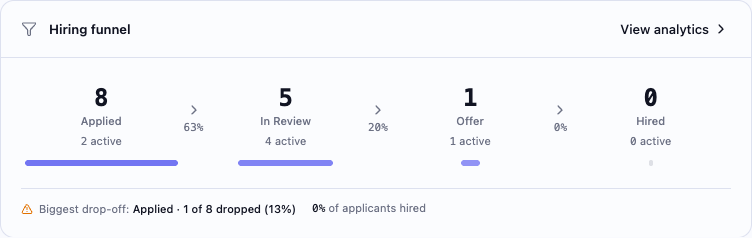
Select View analytics to open the Analytics page, or select a stage to open Analytics with the list of candidates who dropped at that stage. The stages, counts, and drop-off rules are the same as on the Analytics page.
When no applications arrived in the last 90 days, the widget shows: Funnel fills up as applications arrive.
This widget requires both candidates:view and job_positions:view.
Time to hire
Shows the mean elapsed UTC days from application to the first recorded Hired status for currently hired applications submitted in the last 90 days, across all positions. Known-duration hires counts the applications used in the mean; Excluded hires counts hires with missing, invalid, or negative timing. With no usable hires, the mean is Unavailable. This is an application cohort, regardless of when the hire happened.
Select View report to open Analytics with the same period and scope, including position and job-role breakdowns. The widget requires both candidates:view and job_positions:view. A loading placeholder and a failed-request message with Try again are separate from an unavailable mean.
Awaiting assignment
Shows applications in Applied or In Review whose next phase is ready to schedule but has no interview yet. A phase is ready once every phase in the earlier stages is complete — through an interview or with Mark Complete. Each item displays the candidate name, the waiting phase, the position title, and how long ago the candidate applied. The widget lists up to 10 applications, oldest first.
When a stage has several phases, the widget shows one waiting phase per application at a time — the next one appears once the first is scheduled. An application drops off the list while none of its phases is ready to schedule — for example, while every phase in its current stage already has an interview, or once all its phases are complete.
Select Assign to open that application with the Schedule Interview dialog already open for the waiting phase.
This widget only appears when you hold interviews:assign and at least one application is waiting.
New this week
Shows candidates added in the last seven days with their name, position they applied for, source, and how recently they arrived. Select View all to go to the candidates list.
This widget only appears when you hold candidates:view and at least one candidate has been added recently.
Workspace
The Workspace section covers the question library, credits, team, and billing.
Library
Shows the count of questions and templates in your organization's library. Select Browse to jump to the questions or templates list. The specific counts shown depend on which of questions:view and templates:view you hold — a user with only one of the two sees only the relevant count.
Credits
Shows the current credit balance for your organization. The balance turns red and shows Low balance — top up to keep Ivy responsive. when it drops below the low-balance threshold. On a paid plan the threshold is 10% of your monthly credit allowance (the per-seat grant times your hiring seats), and never less than 500 credits. On the Free plan it is 30 credits, 10% of the 300-credit sign-up grant, so an untouched 300-credit sign-up grant is not flagged as low.
If you hold billing:manage, a Buy more button appears alongside the balance.
Team
Shows the total number of members in your organization, a badge for pending invitations, and a breakdown of members by role. Select Manage to go to the members settings page.
Recent purchase
Shows the most recent credit purchase — its label, credits received, and date, plus the amount paid when available. A purchase may be labelled Credit purchase. This widget only appears when there is at least one purchase on record and you hold billing:view.
Role comparison
| Widget | Admin | Staffing | Interviewer |
|---|---|---|---|
| Upcoming interviews | Yes | — | Yes |
| Recent completed | Yes | — | Yes |
| Your approvals | Yes | Yes | — |
| Open positions | Yes | Yes | — |
| Hiring funnel | Yes | Yes | — |
| Time to hire | Yes | Yes | — |
| Awaiting assignment | Yes | Yes | — |
| New this week | Yes | Yes | — |
| Library | Yes | Yes | Yes |
| Credits | Yes | Yes | Yes |
| Team | Yes | Yes | — |
| Recent purchase | Yes | — | — |
A Yes marks permission eligibility; activity-dependent widgets can still be hidden when they have no data. Widgets marked — are hidden for that default role because the role does not hold the required permission. Custom roles may see more or fewer widgets depending on the permissions assigned.
Permissions reference
| Action | Permission | Default roles |
|---|---|---|
| Start standalone / view own upcoming and recent interviews | interviews:conduct | AdminInterviewer |
| Assign interviews | interviews:assign | AdminStaffing |
| View all interviews (org-wide) | interviews:view_all | AdminStaffing |
| View job positions | job_positions:view | AdminStaffing |
| Create job positions | job_positions:create | AdminStaffing |
| View candidates | candidates:view | AdminStaffing |
| Add candidates | candidates:create | AdminStaffing |
| View questions | questions:view | AdminStaffingInterviewer |
| Publish questions / use starter kits | questions:publish | AdminStaffing |
| Create questions | questions:update | AdminStaffing |
| Approve questions | questions:approve | AdminStaffing |
| View templates | templates:view | AdminStaffingInterviewer |
| Publish templates / use starter kits | templates:publish | AdminStaffing |
| Approve templates | templates:approve | AdminStaffing |
| Approve offers | offers:approve | AdminStaffing |
| View members | members:view | AdminStaffing |
| Invite a colleague from the checklist | members:invite | AdminStaffing |
| View credit balance | credits:view | AdminStaffingInterviewer |
| View billing history | billing:view | Admin |
| Purchase credits | billing:manage | Admin |