The Organization Settings page is where an Org Admin controls the identity and behavior of their organization: name, URL slug, contact email, and scoring scale. Each field and card saves on its own — saving one does not affect the others. Careers page content is managed from the Careers page, and the Ivy AI provider from Settings → AI — both are covered below.
Opening the page
The Settings tabs don't include this page. Open it at app.intervy.ai/org/<your-org-slug>/settings/org. On Starter plans and higher, members who can view both email templates and organization settings can also open it from Settings → Communications by selecting Edit in Org Settings next to the contact email.
Prerequisites
Plan requirements below describe normal access. A temporary access grant can unlock a feature before your plan normally includes it; the restrictions apply when no matching grant is active.
Organization name, slug and contact email
The Organization card lets you update three fields independently. Each has its own Save button, shown only to members with org:manage.
- Open the Organization Settings page.
- Edit the Name field and select Save to update the display name.
- Edit the Slug field and select Save to update the URL.
- Edit the Contact email field and select Save to change where candidates reply.
After saving a new slug, Intervy opens Settings at the new address in your current browser. Your default careers page address also uses the new slug. Update external links that still use the old address.
Contact email
The contact email is your organization's address for candidates. Automated candidate emails, like interview reminders and the confirmation a candidate gets after applying, use it as their reply-to address, and it fills {{org.contact_email}} in your email templates. Emails a teammate triggers, like rejections, offers and interview invites, reply to that teammate instead. Members who can view email templates see a Review email templates link under the field that opens the Communications page.
A new organization starts with the creator's email, prefilled in the Create organization dialog where you can change it; the organization you get at sign-up uses your sign-up email. The contact email can't be left empty — an invalid address shows Enter a valid email address. Candidates need somewhere to reply. and is not saved. Members without org:manage see the address but can't change it.
Scoring scale
The Interview Scoring Scale card on the Organization Settings page controls how interviewers rate answers during a session. Only members with org:manage see it. Changes apply to new interviews only — existing interviews keep the scale they were created with.
Picking a preset
Three built-in presets are available:
| Preset | Levels | Range |
|---|---|---|
| Simple | 3 | No · Maybe · Yes |
| Standard | 5 | Strong No → Strong Yes |
| Detailed | 10 | 1 → 10 |
Click any preset card to select it. A live preview of the rating bar appears beneath the selector so you can review the rating options, then select Save Changes to apply it. Cancel discards the selection.
The default scale when a new organization is created is Standard (5 levels).
Fully custom labels
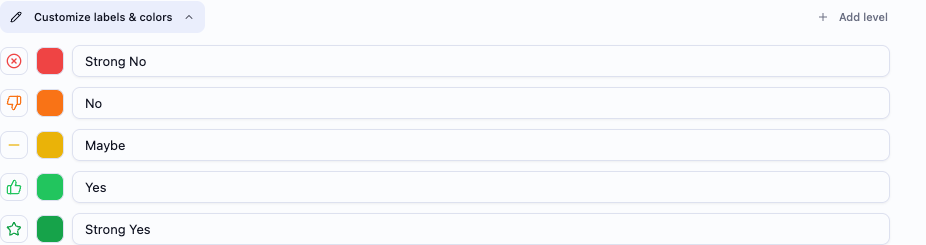
If the presets do not match your process, select Customize labels & colors below the preset picker to open the editor. From there you can:
- Rename any level — each label supports up to 30 characters.
- Change the color — pick from the palette or enter a hex code directly.
- Change the icon — select a different icon from the icon picker for each level.
- Add a level — select Add level to append a new level (maximum 10).
- Remove a level — hover a row and select the remove button (minimum 2 levels required).
When you are satisfied, select Save Changes. Selecting Cancel discards all unsaved edits.
Snapshot isolation — existing interviews are unaffected
Newly scheduled or started interviews keep the scale that was active when they were created. Saving a new scale does not change the saved scale of scheduled, in-progress or completed interviews. Older interviews without a saved scale use the Standard options.
This means you can safely adopt a new scale for upcoming positions without disturbing any ratings already collected.
When to switch scales
- Switch before creating the interviews that should use the new scale. They keep that scale even if you change the organization setting later.
- Avoid switching mid-pipeline for an active position. Interviewers in earlier completed phases will have used the old scale; interviews created later will use the new one, making direct score comparisons harder.
- A Simple (3-level) scale works well when your interviewers are new to structured interviewing and you want a low-friction entry point.
- A Detailed (10-level) scale is useful when you want fine-grained differentiation across a large candidate pool.
Careers page content
Careers page settings live on the Careers page in the sidebar, not under Settings. The Overview tab holds the page copy; the Privacy & Publish tab controls visibility and the privacy policy link. The Privacy & Publish tab requires org:manage.
Publishing
On the Privacy & Publish tab, use the Publish card to control whether your organization's careers page is publicly accessible. Turn on the Publish org on careers site switch to publish it.
- When the badge next to the switch shows Live, your page is accessible at
careers.intervy.ai/<your-org-slug>. - When the badge shows Hidden, the URL returns a not-found page regardless of open positions.
- Individual job positions have their own visibility setting. Closed and hidden positions are never exposed even when publishing is on.
Select Preview careers page (available while the page is live) to open the live careers page in a new tab.
On Free, selecting the Publish org on careers site toggle opens the upgrade dialog, and the toggle stays off.
The Overview tab shows whether your careers page is published:
- When publishing is on and your plan includes the public careers page, the card reads Your careers page is live and shows your careers URL, marked Custom when a custom domain is active and Default otherwise.
- On Starter and higher, when publishing is off, the card reads Your careers page isn't published and shows your careers URL marked Hidden. Candidates see a "not found" page at that address until you turn publishing on. Members with
org:managesee a Go to Privacy & Publish button that opens the Privacy & Publish tab. - On Free, the card reads Your careers page isn't published whether or not publishing is on, shows Available on Starter and up and, for members with
org:manage, an Upgrade to Starter button that opens the upgrade dialog.

Page content
The Page content card on the Overview tab controls the copy displayed at the top of your careers index:
- Org tagline — a short subhead displayed under the org name (up to 120 characters).
- About section — the "Who we are" block shown between the header and the list of open positions. Markdown is supported. Switch between Write and Preview tabs to check formatting. The section supports up to 10,000 characters.
The tagline saves when you select Save or move focus away from the field. The about section saves when you select Save.
Privacy policy
The Privacy policy card on the Privacy & Publish tab sets the privacy link shown in the careers page footer. Choose one:
- Use Intervy's privacy page — applicants see Intervy's standard privacy notice.
- Use my own URL — enter your own privacy policy URL, then select Save changes. Requires a Growth plan or higher.
Your organization logo on the careers page header comes from Settings → Branding (Scale plan) — see Branding.
AI provider
The Ivy AI co-pilot is configured on Settings → AI.
- Enable Ivy — the switch on the Ivy card. It's saved for your own account, not for the whole organization. While your organization has credits left or uses its own API keys, Ivy stays available even with the switch off.
- Ivy AI provider — choose where Ivy gets its AI capacity. The provider applies to everyone in the organization, and only members with
org:managecan change it:- Intervy Credits — Ivy uses your organization's pooled credits.
- Anthropic or OpenAI — each member uses their own personal API key for that provider. Choose a Default model, then select Save changes.
When you switch from Intervy Credits to your own key, a confirmation dialog explains that members without a personal key will see errors until they add one. You can switch back to Intervy Credits at any time.
While the organization uses Anthropic or OpenAI, every member can add their own matching personal key on Settings → AI, including Interviewer. Members without organization-view permission see the provider read-only; their personal-key controls do not require access to organization-management settings. When organization settings load successfully, members with organization-view permission also see the saved Default model.
Enter a key and move focus away from the field to save it. Select Test to check the connection: Connection successful or Connection failed — check your API key appears. Enter another key to replace it, or select Remove key to delete it, including after testing. Your key is encrypted when saved and shown only as a masked hint; changing it affects your own account.
If the provider is unknown or unavailable, turn on your personal Enable Ivy switch and select Refresh AI status. Loading and failed reads never imply Intervy Credits. Members who can read organization settings can select Retry provider settings after a failed read; personal-key controls still work when the provider is known from Ivy's status.
Deleting the organization
The Danger Zone card is shown for non-system organizations to users with org:delete. Selecting Delete organization opens a confirmation dialog. Select Delete to confirm. Deletion is permanent and cannot be undone.
If the organization pays for its plan online in Intervy, deleting it cancels the subscription immediately. If the subscription can't be canceled, the organization is not deleted.
Permissions reference
| Action | Permission | Default roles |
|---|---|---|
| View organization settings | org:view | AdminStaffing |
| Update organization name, slug, and settings | org:manage | Admin |
| Delete organization | org:delete | Admin |
| View careers page settings | careers:view | AdminStaffing |
Troubleshooting
"Failed to update organization name" — The name is empty or the request failed. Enter a name and select Save again.
"Failed to update organization slug" — Another organization already uses this slug, or the request failed. Choose a different slug and select Save again.
"Failed to update contact email" — The address was rejected or the request failed. Check the address and select Save again.
"Slug must be 2-48 characters, lowercase letters, numbers, and single hyphens only (no leading/trailing or doubled hyphens)" — The slug you entered did not pass validation. Correct the slug and select Save again.
"Use a full URL starting with https://" — The privacy policy URL you entered on the Privacy & Publish tab doesn't start with https://. Enter a full address beginning with https://; an address that isn't a valid web link can't be saved.
Tagline or about section not saving — The tagline is limited to 120 characters and the about section to 10,000 characters. If either field exceeds the limit, the Save button is disabled. Shorten the text to re-enable saving.